
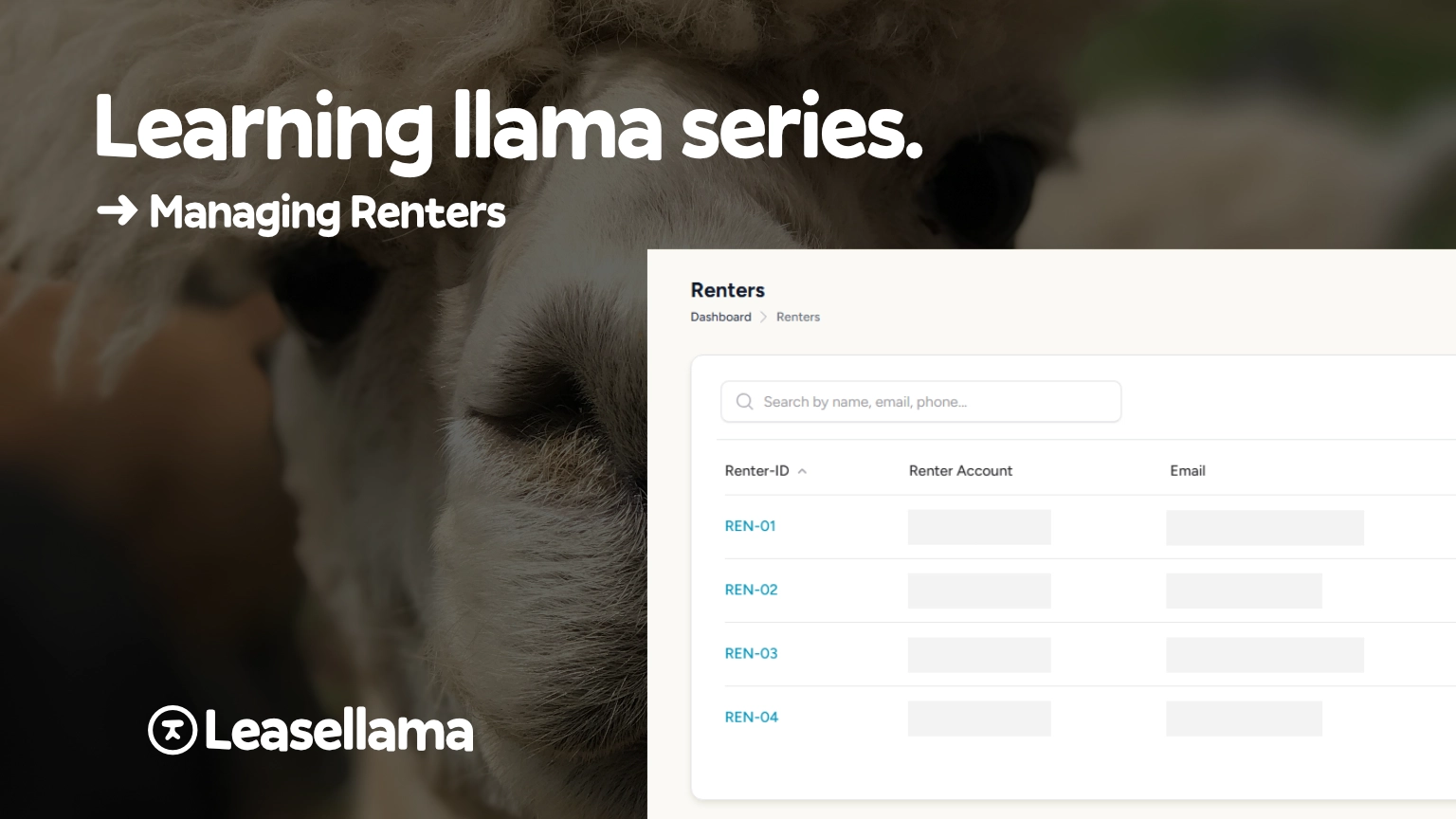
Managing Renters in LeaseLlama
A guide to managing renters in LeaseLlama — from creating accounts and adding payment methods to tracking balances, authorized persons, and the renter ledger.
The LeaseLlama Team on March 20, 2026
Once your facility is set up (categories created, spaces added, contract written), the next thing you’ll do most often in LeaseLlama is manage your renters. This is where the real day-to-day work happens.
This post walks through everything you need to know about renter accounts: creating them, setting up payments, reading the renter profile, managing authorized persons, and using the ledger to know exactly where every renter stands financially.
Creating a Renter Account
Every person or business that leases space at your facility gets a renter account. To create one:
- Go to Renters in the main navigation
- Click Create Renter
- Choose the account type: Individual or Business
- Fill in the details: name, email, phone number, and any notes
- Click Create
That’s it. The renter now exists in your system with a unique Renter ID.
Individual vs. Business: Most of the time, you’ll create individual accounts. Choose Business when a company is leasing space: the account gets a Company Name field, and the contact person is listed separately. This matters for invoices and contracts, since the business entity is the one on the lease.
Renter Statuses
Every renter has a status that tells you where they stand at a glance:
- Active: Currently renting one or more spaces. This is your bread and butter.
- Inactive: No active rentals. Maybe they moved out, maybe they haven’t rented yet.
- Suspended: Manually flagged. Useful for renters with unresolved issues (unpaid balances, rule violations, etc.). A suspended renter can’t check out new spaces until you lift the suspension.
You can filter your renters list by status, which makes it easy to see who’s currently active versus who’s a past customer.
The Renter Profile: Your Renter Command Center
Click on any renter and you’ll land on their profile. This is the single place where everything about that renter lives. No digging through spreadsheets, no cross-referencing tabs.
At the top, you’ll see four summary stats:
| Stat | What It Tells You |
|---|---|
| Active Rentals | How many spaces this renter is currently leasing |
| Balance Due | Total amount they currently owe |
| Credits | Any credit balance on their account |
| Deposits | Security deposits you’re holding |
Below that, the profile is organized into tabs. Let’s walk through the important ones.
Active Rentals Tab
This shows every space the renter is currently leasing, with the key details for each:
- Space ID: which space they’re in
- Start Date: when the rental began
- Billing Interval: monthly, quarterly, annual, or custom
- Amount: what they’re paying per billing cycle
- Next Billing: when their next invoice will generate
LeaseLlama supports flexible billing intervals: daily, weekly, monthly, quarterly, annual, or custom periods. Most operators use monthly, but if you have seasonal renters or annual leases, you set that per rental during checkout.
When a renter is done and it’s time to end the rental, you click Check In on that rental. This frees up the space, processes any deposit refunds, and moves the rental to history. (We’ll cover the full check-in process in a future post.)
Payment Methods Tab
Before a renter can check out a space, they need a payment method on file. LeaseLlama supports two types:
Credit Card (Stripe)
If you’ve connected Stripe, renters can have one or more credit cards on file. When an invoice generates, LeaseLlama can auto-charge the default card. No chasing payments, no reminder emails. It just happens.
To add a card:
- Go to the renter’s Payment Methods tab
- Click Add Payment Method
- Enter the card details through Stripe’s secure form
- Set it as the default if it’s their primary card
LeaseLlama never stores full card numbers. That’s all handled securely by Stripe. You’ll see the last four digits and expiration date, which is enough to identify the card.
Manual Payments
Not every renter pays by card. Some bring a check. Some pay cash. That’s fine. Toggle on Authorize Manual Payments for that renter, and you can record payments manually whenever they come in. The renter’s ledger tracks everything regardless of how they pay.
A renter can have both: a card on file for auto-pay and manual payments authorized for the occasional check or cash payment.
Authorized Persons Tab
Sometimes it’s not just the renter who needs access to their spaces. An RV owner might want their spouse to be able to pick up the rig. A business renting warehouse bays might have employees who need access.
That’s what authorized persons are for. They’re people connected to a renter’s account who can access the renter’s spaces, but they’re not renters themselves. They can’t sign contracts, make payments, or manage the account.
To add an authorized person:
- Go to the renter’s Authorized Persons tab
- Click Add Authorized Person
- Enter their name, phone number, and relationship to the renter
- Save
You can add as many as needed and remove them at any time. This gives you a clear record of who’s authorized at your facility without creating extra renter accounts.
The Renter Ledger: Every Dollar, Tracked
The Ledger tab is your financial history for that renter. Every transaction that touches their account shows up here:
- Invoices generated (recurring or manual)
- Payments received (auto-charged or manually recorded)
- Credits applied
- Refunds issued
- Manual adjustments you’ve made
Each entry is color-coded so you can scan quickly. The running balance column shows you exactly where the renter stands at any point in time. A positive balance means they owe you money. A negative balance means they have a credit.
At the top of the ledger, you’ll see summary cards:
| Card | What It Shows |
|---|---|
| Account Balance | Current total owed (or credit) |
| Overdue Balance | Amount past due |
| Deposit Balance | Security deposits held |
| Credit Balance | Unused credits on account |
When a renter calls and asks “how much do I owe?” — this is where you look. One glance, one answer. No scrolling through spreadsheet rows trying to piece together payment history.
Deposits Tab
If you collect security deposits at checkout (and most operators do), they’re tracked on the renter’s Deposits tab. Each deposit shows:
- Which space it’s tied to
- The amount
- Whether it’s Collected or Pending
When the renter eventually checks in (ends their rental), the deposit refund is handled as part of that process. You can refund the full amount, apply part of it to an outstanding balance, or forfeit it if the lease terms allow.
All deposit activity also shows up in the renter ledger, so the financial picture stays complete.
Contracts Tab
The renter’s profile also tracks their contract status. LeaseLlama uses a single facility-wide rental agreement — every renter signs the same contract.
There are two ways a renter can sign:
- Email: LeaseLlama sends the contract to the renter’s email. They review and accept digitally.
- Manual/Paper: You handle the signing in person (paper printout, for example) and mark it as accepted in LeaseLlama.
The profile shows whether the renter has accepted the current contract version. If you update your contract later, existing renters keep their original version. New renters get the updated one.
If something goes wrong or terms need to be re-agreed, you can revoke a renter’s contract acceptance and re-send it.
Tips for Staying on Top of Your Renters
Use the renters list filters. Filter by Active to see your current book of business. Filter by Suspended to follow up on problem accounts. Sort by balance to find who owes the most.
Check the dashboard regularly. Your LeaseLlama dashboard surfaces key metrics: overdue invoices, upcoming billing, occupancy. This is your morning check-in.
Don’t skip onboarding steps. A renter needs a payment method and a signed contract before they can check out a space. LeaseLlama shows onboarding banners on the renter profile until these are complete. Finish them upfront and you avoid headaches later.
Add notes. The renter account has a notes field. Use it. “Prefers to pay by check on the 5th” or “Has a 42-foot fifth wheel, needs pull-through space.” Future-you will appreciate it.
What’s Next
Now that you know how renter accounts work, here are some related posts:
- How to Rent a Space: The LeaseLlama Checkout Process: the step-by-step for actually leasing a space to a renter
- Categories and Spaces: How LeaseLlama Organizes Your Facility: if you haven’t set up your spaces yet
- How to Set Up LeaseLlama from Scratch: the full first-time setup guide
Not using LeaseLlama yet? Start your free trial →
Set up your facility and start managing renters in under an hour. $49/month, cancel anytime.
Keep reading
How to Set Up LeaseLlama from Scratch
A step-by-step setup guide for new LeaseLlama users — from signing up to renting your first space. Covers system settings, categories, spaces, contracts, Stripe, and adding staff.

How to Start a Classic Car Storage Business: Complete Guide
Want to start a classic car storage business? Here's everything you need — from facility requirements to pricing to software — in one practical guide.
10 Types of Storage Businesses You Can Start (Beyond Self-Storage)
Thinking beyond traditional self-storage? Here are 10 types of storage businesses you can start — from RV lots to container yards to wine lockers.