
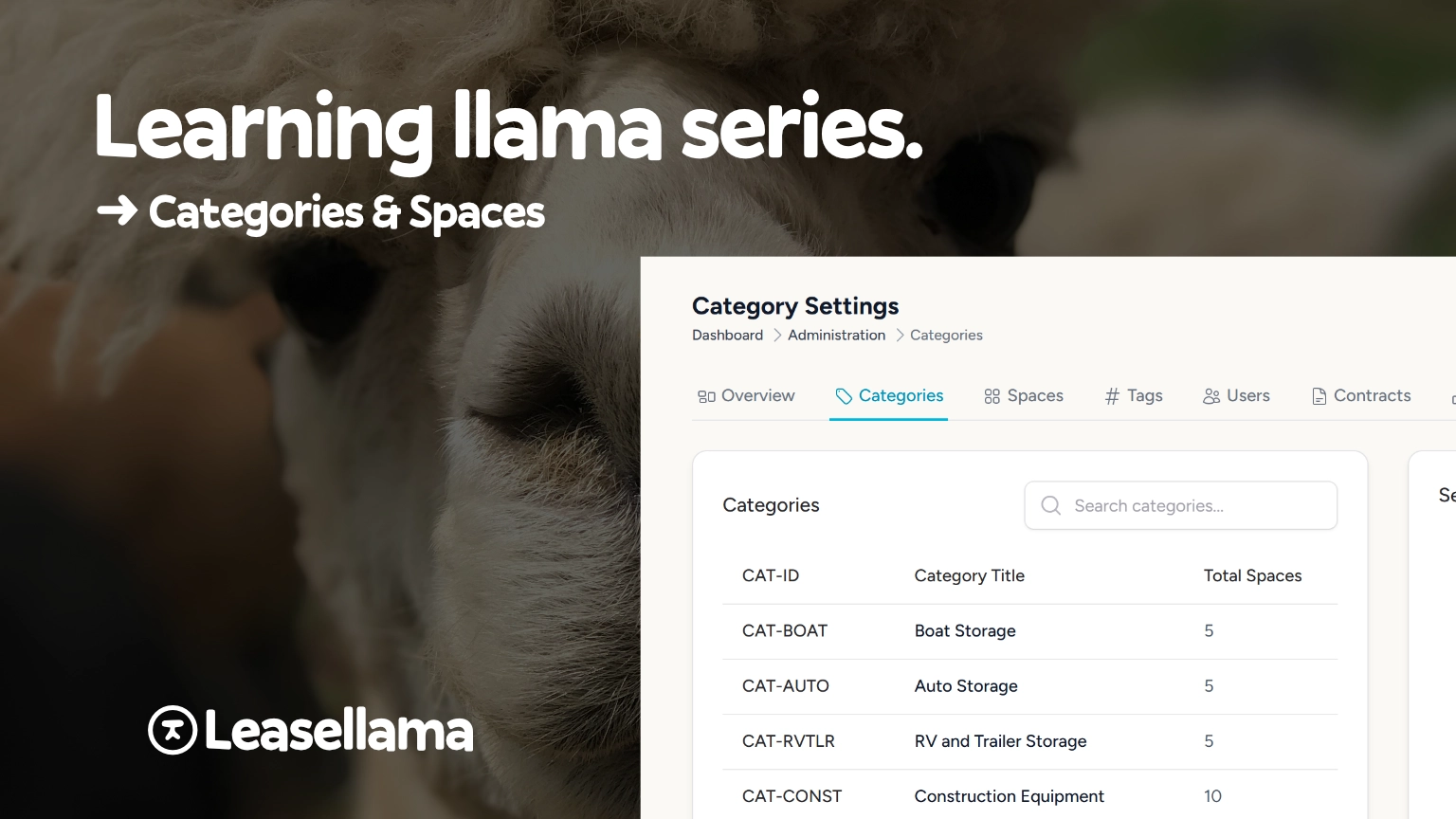
Categories and Spaces: How LeaseLlama Organizes Your Facility
Learn how LeaseLlama's two-level system of categories and spaces helps RV storage, boat storage, parking, and warehouse operators set up consistent pricing and manage inventory without the headache.
The LeaseLlama Team on February 20, 2026
When you’re setting up new space leasing software, the first question is usually: where do I even start? LeaseLlama has a simple, two-level answer: categories first, spaces second. Once you understand how these two things relate, the rest of the setup falls into place quickly.
The big idea: categories are types, spaces are units
Think of it this way:
- A category is a type or section of space within your facility: “Covered RV Storage” or “10×20 Warehouse Bay” or “Section K”
- A space is an individual unit within that type: spot #14 or bay B-07
Every space belongs to exactly one category, and every category defines a default price for each space within that category. A space can also carry its own custom price when it needs one. That’s pretty much the whole model. Simple by design.
Why start with categories?
Categories do two important jobs:
1. They set your default pricing. When you create a category, you set a daily rate and a security deposit amount. Every space you add to that category automatically inherits those prices. No need to price each unit one by one. If you have 40 uncovered RV spots all priced the same, you set it once.
2. They organize your inventory. Your staff (and you) can filter by category to instantly see “how many 10×10 units do we have available?” or “how many units are available in our warehouse section B?” without scrolling through a long list. It keeps your spaces organized, tidy, and easy to find.
A real example: RV storage facility
Say you run an RV storage facility with three types of storage spaces:
| Category | Daily Rate | Deposit |
|---|---|---|
| Uncovered RV Spots | $3.33/day (~$100/mo) | $100 |
| Covered RV Carports | $5.00/day (~$150/mo) | $150 |
| Pull-Through RV Spaces | $6.67/day (~$200/mo) | $200 |
You’d create three categories with those defaults, then bulk-add all your spaces underneath them. Done. Your RV storage management software is priced and organized before you’ve even had your second cup of coffee.
A real example: mixed-use facility
What if you’re running a facility with multiple space types — say, vehicle parking, warehouse bays, and some covered RV storage? No problem. LeaseLlama doesn’t limit how many categories you can create. A typical mixed-use setup might look like:
- Monthly Parking Permits: small spaces, low deposit, high volume
- Small Warehouse Bays (600 sq ft): medium rate, standard deposit
- Large Warehouse Bays (1,200 sq ft): higher rate, larger deposit
- Covered RV Storage: seasonal pricing if needed
Each category behaves independently. You can have 10 categories or 2, whatever matches how your facility is actually organized.
Spaces: where the detail lives
Once your categories are set up, you add spaces inside them. Each space gets:
- A Space ID (auto-generated or custom, like
RV-COV-01orBAY-B-07) - An optional title for a friendly label (“Corner Unit - Extra Wide”)
- Optional pricing overrides if one specific unit has a different rate
- Optional tags for extra filtering (more on that below)
The pricing override piece is worth understanding. If most of your covered RV spaces rent at $150/month but one premium pull-through spot commands $175, just override the rate on that one space. The category default stays intact for everything else.
The role of tags
Categories and spaces handle the structure of your facility. Tags handle the details.
Tags are optional labels you apply to individual spaces: things like “Near Gate,” “Ground Floor,” “Extra Wide,” or “Recently Renovated.” They don’t affect pricing, but they help staff filter and answer specific questions fast. If a renter calls asking for a ground-floor warehouse unit near the loading dock, your staff can find available matches in seconds.
The rule of thumb: if the grouping affects pricing, use a category. If it’s just for organization or filtering, use a tag.
Setting it all up
The setup order in LeaseLlama flows like this:
- Create your categories in Administration → Categories. Name them, set daily rates and deposits
- Add your spaces in Administration → Spaces. Single or bulk creation, apply overrides as needed
- Add tags in Administration → Tags. Then assign them to spaces where relevant
After that, your facility management software is ready to go. Staff can see which spaces are available, check out a space to a renter, and start billing, all from one screen.
If you haven’t set up your account yet, the Quick Start Guide walks through the whole thing step by step. It takes most operators less than 30 minutes to go from blank account to first rental.
The short version
- Categories = types of spaces, with default pricing attached
- Spaces = individual units that inherit category pricing (or override it)
- Tags = optional labels for filtering, no pricing impact
That’s the complete model. No complicated hierarchies, no confusing configuration screens. Just a clean two-level system that works whether you’re managing 10 RV spots or 300 mixed units across a warehouse and parking facility.
Ready to try it? Start your free trial: full access for 30 days, no lock-in.
Keep reading
How to Set Up LeaseLlama from Scratch
A step-by-step setup guide for new LeaseLlama users — from signing up to renting your first space. Covers system settings, categories, spaces, contracts, Stripe, and adding staff.
How to Rent a Space: The LeaseLlama Checkout Process
A step-by-step walkthrough of the LeaseLlama checkout process — from getting a renter into the system to a signed contract and first invoice, start to finish.
Managing Renters in LeaseLlama
A guide to managing renters in LeaseLlama — from creating accounts and adding payment methods to tracking balances, authorized persons, and the renter ledger.